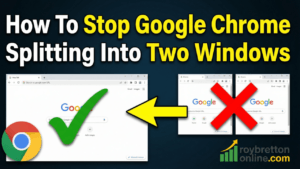
In this video and blog post, I would like to show you how to stop Google Chrome splitting into two windows. If you have ever tried to drag a Google Chrome tab out into its own window, only to have the screen suddenly split into two side-by-side windows, you are not alone. It feels like Chrome is misbehaving, but in most cases this is actually a Windows feature called Snap.
In this post, I will show you exactly what causes it, how to turn it off in Windows 10, and why you may need to restart your computer before the change takes effect.
What Is Causing Chrome To Split Into Two Windows?
This usually happens when you drag a Chrome tab out (so it becomes a new window) and your mouse goes close to the left edge, right edge, or top of the screen. Windows 10 assumes you want to use Snap, so it automatically arranges the windows side by side.
It can be useful if you only have one monitor, but if you have two or three monitors (like I do), it can quickly become annoying.
How To Turn Off Snap Windows In Windows 10
Here are the exact steps:
- Click the Windows Start button.
- Click Settings.
- Click System.
- Scroll down and click Multitasking.
- Find Snap windows and switch it Off.
Once Snap windows is turned off, Windows should stop forcing your Chrome windows to snap into a split-screen layout when you drag tabs around.
Important: You May Need To Restart Windows 10
On Windows 10, you may find the setting does not fully take effect immediately. In my case, Chrome could still split the screen until I restarted the computer.
If you turn Snap windows off and it still happens, do this:
- Close Chrome.
- Restart your computer.
- Open Chrome again and test dragging a tab out of a group of tabs.
Quick Demonstration Of The Problem
If you want to understand what triggers it (or demonstrate it yourself), try this:
- Open Chrome with multiple tabs.
- Drag one tab out so it becomes a separate window.
- Move that window towards the left or right edge of the screen.
- Windows will often snap it to half the screen, and suggest the other window fills the other half.
Turning Snap windows off should stop this behaviour.
Frequently Asked Questions
Is this a Google Chrome problem?
Usually, no. It is normally Windows 10 Snap (Multitasking) trying to help by arranging windows automatically.
Why has it only started happening recently?
It can become more noticeable after Windows updates, changes in your display setup, or simply because it is easy to drag near the screen edge when you are moving tabs quickly.
Will this affect anything else?
Yes. Turning off Snap windows means Windows will stop snapping all windows into place, not just Chrome. If you like snapping other apps, you may prefer to leave it on, but for many people it is more of a nuisance than a help.
More Helpful Guides On This Website
If you found this useful, you may also like these related posts:
- How to Refresh All Chrome Tabs at Once (Quick Guide)
- How To View Your Website On Mobile Using A PC Or Mac
- How To Stop Dragon NaturallySpeaking Lagging
- How To Clear Junk From Windows 10 And 11 To Speed Up Your Computer
- Don’t Throw Your Windows 10 PC Away!
Final Thoughts
When Chrome suddenly splits into two windows, it is easy to assume Chrome has changed or broken. In reality, it is often Windows 10 Snap doing what it was designed to do. Once you know where the setting is, it is a quick fix, and a restart usually makes sure the change properly kicks in.
If you have any questions, feel free to leave a comment and I will do my best to help.