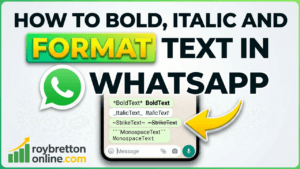
In this blog post, I want to show you how to bold, italic and format text in WhatsApp using a few simple symbols. This is one of those small tips that can make a big difference, especially if you use WhatsApp for groups, business messages, church notices, online work, or general communication.
I discovered this properly when I was preparing a WhatsApp post for a group. I wanted to make the headline stand out, but when I tried to highlight the text and make it bold, it did not work in the way I expected.
That led me to look into how WhatsApp formatting actually works. The good news is that once you know the symbols, it is very straightforward.
Why Format Text In WhatsApp?
Most of us send WhatsApp messages in plain text. That is fine for short messages, but if you are writing something longer, important information can easily get lost.
Formatting helps you make your message easier to read. You can make a title stand out, emphasise a particular point, show that something has been corrected, or make a message look more professional.
For example, if you are posting in a business group, you may want the headline to stand out. If you are sending a church announcement, you may want the date and time to be very clear. If you are replying in a busy group, bold text can help people see the main point quickly.
How To Make Text Bold In WhatsApp
To make text bold in WhatsApp, place an asterisk at the beginning and end of the text.
*This text will appear bold*
When the message is sent, WhatsApp removes the asterisks and displays the text in bold.
This is probably the most useful WhatsApp formatting feature. I would use it for headings, important dates, key points, or anything that needs to stand out from the rest of the message.
How To Make Text Italic In WhatsApp
To make text italic, place an underscore at the beginning and end of the text.
_This text will appear italic_
Italic text can be useful when you want to add emphasis without making the wording look too strong. It is a slightly softer way of drawing attention to a word or phrase.
How To Use Strikethrough In WhatsApp
To create strikethrough text, place a tilde at the beginning and end of the text.
~This text will be crossed out~
Strikethrough is useful when something has changed. For example, if a meeting was originally planned for Tuesday but has been moved to Wednesday, you could write it like this:
~Tuesday~ Wednesday
It makes the correction very clear without needing a long explanation.
What Is Monospace In WhatsApp?
Monospace is a style of text where every character takes up the same amount of space. It has more of a computer-style appearance and is often used for code, file names, commands, or technical examples.
To use monospace in WhatsApp, place three backticks before and after the text.
```This text will appear in monospace```
Most everyday WhatsApp users will probably not use monospace very often, but it is useful to know that it exists. It can be helpful if you are sharing a file name, a short piece of code, or something where the spacing matters.
Can You Combine WhatsApp Formatting?
Yes, you can combine some of these formatting options.
For example, to make text bold and italic, you can use both the asterisk and the underscore.
*_This text will be bold and italic_*
You can also combine bold, italic and strikethrough if you want to, although in most everyday messages that may be more formatting than you actually need.
WhatsApp Formatting Cheat Sheet
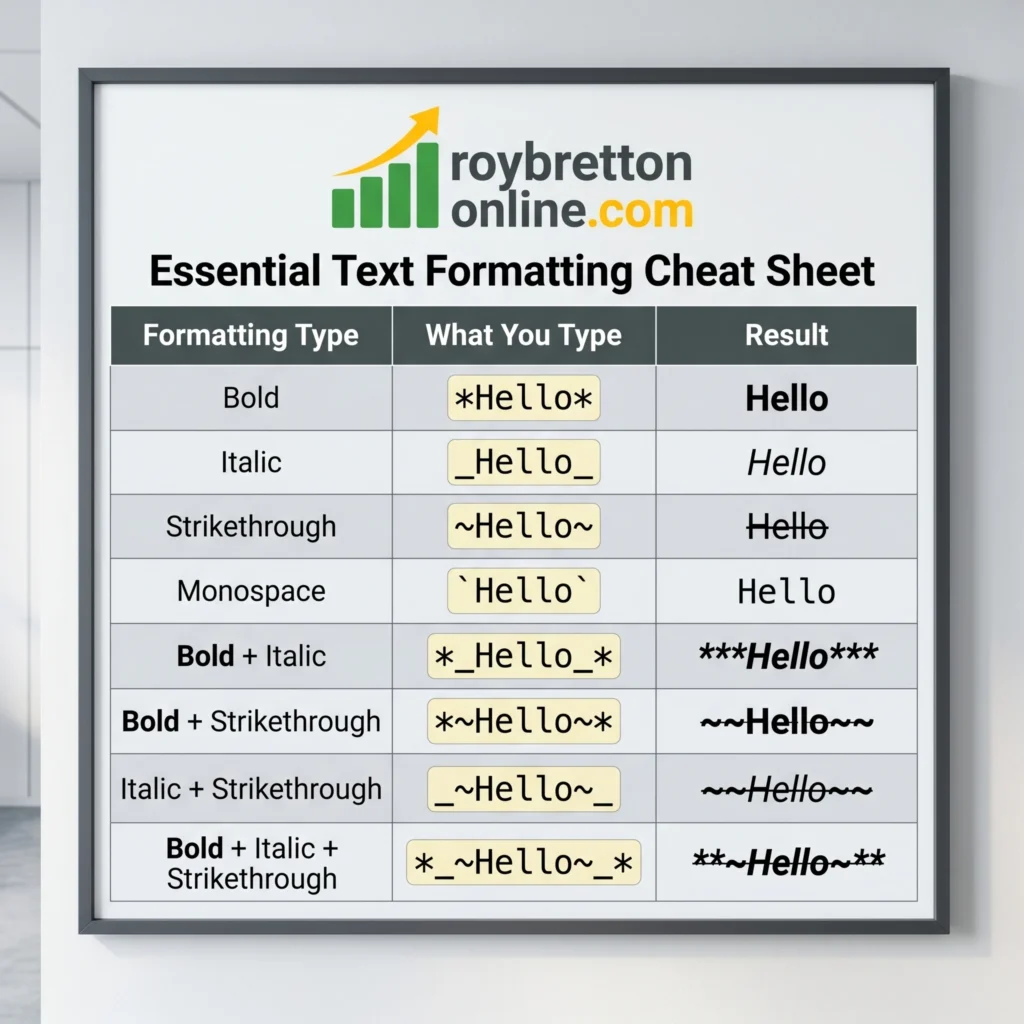
| Formatting | What To Type |
|---|---|
| Bold | *text* |
| Italic | _text_ |
| Strikethrough | ~text~ |
| Monospace | “`text“` |
| Bold and italic | *_text_* |
Does This Work On WhatsApp Web?
Yes, these formatting methods work on WhatsApp Web as well as on a mobile phone.
I often use WhatsApp in a Google Chrome browser window on my PC because it allows me to type directly into WhatsApp using Dragon NaturallySpeaking. That is one of the reasons I like using the browser version. For longer messages, I find it much easier than typing everything on a phone.
If you would like to know more about using WhatsApp on a computer, I have written a separate guide here:
How To Use WhatsApp Web On Your Computer
Does This Work On Android And iPhone?
Yes, the same formatting symbols work on Android phones and iPhones.
On a phone, it may sometimes be easier to type the symbols first and then write the text between them. For example, if you want to make a word bold, you can type two asterisks first and then place your word between them.
**
Then place your word in the middle:
*Important*
Once you send the message, WhatsApp will show the word in bold.
Why Highlighting Text Does Not Always Work
Some people expect WhatsApp to work like Microsoft Word, where you highlight text and then click a bold or italic button. On some mobile devices, WhatsApp may offer formatting options when you select text, but it does not always feel obvious or consistent.
On WhatsApp Web, I find it much easier to use the symbols manually. It is quicker, more reliable, and works well when dictating or typing into a browser window.
Finding The Tilde Key On Your Keyboard
The tilde symbol is used for strikethrough formatting:
~text~
One thing to be aware of is that keyboard layouts vary. A UK keyboard may place the tilde key in a different position from a US keyboard. Laptop keyboards and desktop keyboards can also vary slightly depending on the manufacturer.
On my keyboard, the tilde is near the Enter key and shares a key with the hash symbol. On another keyboard, it may be somewhere else.
If you cannot find it straight away, do not worry. The easiest thing is to look closely at your own keyboard or search online for your keyboard model. Once you know where the key is, it becomes easy to use.
A Simple Tip For Longer WhatsApp Messages
If you are writing a longer WhatsApp message, consider using bold text for the heading and then plain text for the rest of the message.
For example:
*Important Update*

The meeting time has changed from 7 PM to 7:30 PM.
This makes the message easier to read and helps the important part stand out.
Useful For Business, Groups And Online Work
WhatsApp formatting is useful in many situations. If you are posting in a business group, a community group, a church group, or a family chat, formatted text can help people understand the message more quickly.
It is not about making messages look fancy. It is about making them clearer.
For anyone who works online, small tips like this can save time and improve communication. I share more practical computer and online work tips in the How To’s section of this website.
Using WhatsApp On A Computer
I much prefer using a full-size keyboard when writing longer WhatsApp messages. It is quicker, easier to correct mistakes, and more comfortable than typing on a mobile phone.
Using WhatsApp Web also means I can copy and paste links, send files from my PC, and use speech recognition software when needed.
If you use your computer every day, you may also find the Windows Computers section helpful, where I share practical tips for everyday computer use.
Final Thoughts
WhatsApp text formatting is a simple feature, but it is one that many people do not know about. Once you learn the basic symbols, it becomes very easy to make your messages clearer and more professional.
The main ones to remember are:
- Use asterisks for bold text
- Use underscores for italic text
- Use tildes for strikethrough text
- Use three backticks for monospace text
For most people, bold text will probably be the most useful option. However, it is good to know that the other formatting tools are available when needed.
Whether you use WhatsApp on your phone or through a browser on your computer, these simple formatting tricks can help your messages stand out and make them easier to read.